YARRAPOST GUIDES · UPDATED 14 SEPTEMBER 2026
Publish an MP4 video to your LinkedIn profile
A finished video should travel with its caption. YarraPost can upload an MP4 as a native LinkedIn video, bind approval to that exact text and media, and publish it now or at a scheduled time. This guide covers connected personal profiles; LinkedIn company-page publishing is not currently supported.
Check your file before uploading
These are YarraPost’s current limits for LinkedIn video. They include an application upload cap that is lower than LinkedIn’s documented file-size specifications.
- One MP4 per LinkedIn destination variant.
- File size: 75,000 bytes to 64 MiB (67,108,864 bytes).
- Duration: 3 seconds to 30 minutes.
- Readable duration and dimensions in the MP4 metadata.
- Landscape, square or portrait orientation.
- Optional post text, up to 3,000 characters.
For example, a 23-second portrait product demo of about 2.3 MiB fits these size and duration limits. Passing validation does not guarantee successful decoding: LinkedIn also processes the uploaded file. If it rejects the encoding, try an MP4 export with H.264 video and AAC audio.
LinkedIn’s official Videos API documentation describes its upload and processing requirements. The 64 MiB limit above belongs to YarraPost.
1. Confirm the connected personal profile
Sign in to YarraPost and open Channels. Check the name on your LinkedIn destination. Choose the intended personal profile; a company page is not interchangeable with that profile. If authorization has expired, resolve the connection issue before planning delivery.
YarraPost’s native video flow uses the existing Share on LinkedIn access. An agent preparing content cannot grant itself provider permissions or complete another person’s consent.
2. Upload the MP4 and save the caption
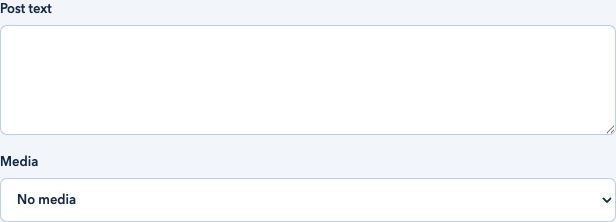
Create a post, enter an internal title and enable the LinkedIn destination. Use Upload media to upload the MP4, then select it in the destination’s media field. Add the text that should appear with the video and choose Save draft.
The internal title helps you find the post in your workspace. It is separate from the LinkedIn post text. Check the video preview and caption together, then choose Check post to validate the saved draft.

3. Request review of the saved revision
Choose Request review. A reviewer with approval permission checks the destination, caption and selected video, then chooses Approve revision.
Approval applies to that exact content revision. Replacing the video or editing the caption invalidates the old approval and cancels queued publication. Save and review the changed revision before scheduling it again.

4. Publish now or schedule delivery
Choose Publish now for immediate delivery, or set the Publication time and choose Schedule saved revision. Check the timezone shown beside the time field.
The scheduled time is when delivery begins. Upload and LinkedIn processing happen before the post is created, so a video may appear after that time. Leave room for processing when planning a time-sensitive announcement.
5. Verify the published result
Use Refresh publication status in the editor. Follow the destination through preparation and processing. Once publication is confirmed, YarraPost displays View publication; open it to inspect the LinkedIn post.
A queued or processing status is not successful publication. Each destination has its own result, so check the LinkedIn delivery even if another channel has already succeeded.
When a video does not publish
- Validation rejects the upload
- Check the MP4 size and duration. If metadata cannot be read, re-export the video and upload it again. Save the new media selection and request fresh approval.
- Preparation or upload is interrupted
- Read the progress and recovery guidance. When automatic recovery is active, YarraPost keeps the saved upload checkpoint and resumes the existing delivery. Do not create a replacement post to work around a temporary interruption.
- LinkedIn processing fails
- The network may have rejected the file’s encoding. Follow the displayed error, keep the existing delivery record, and prepare a replacement export if instructed. A replacement asset requires a new approved revision.
- Authorization fails
- Check the connected account and displayed authorization message. An administrator may need to review account access. Repeatedly clicking publish does not fix a permission failure.
- The outcome needs verification
- LinkedIn may have accepted a post even if its response was lost. Automatic reposting is disabled for uncertain outcomes. Inspect the personal profile and contact support before another publishing attempt.
When contacting support@yarrapost.com, include the post or delivery ID and the visible error. Keep credentials and access tokens out of the message.
Automating this workflow
Agents use the same media, validation, approval and scheduling paths. Read the API and MCP integration guide for operation names, idempotency keys and delivery polling, or the general publishing guide for the cross-channel workflow.